
Appearance
Reviewing a request
What an approver sees when a request is open: what was asked for, who has signed so far, and the two buttons that matter.
Menu path Approve › Approval inbox → select a request
Address https://hub.cnvconnect.com/approvals?id=<id>
Permission approvals:view
Who uses it approvers
The screen
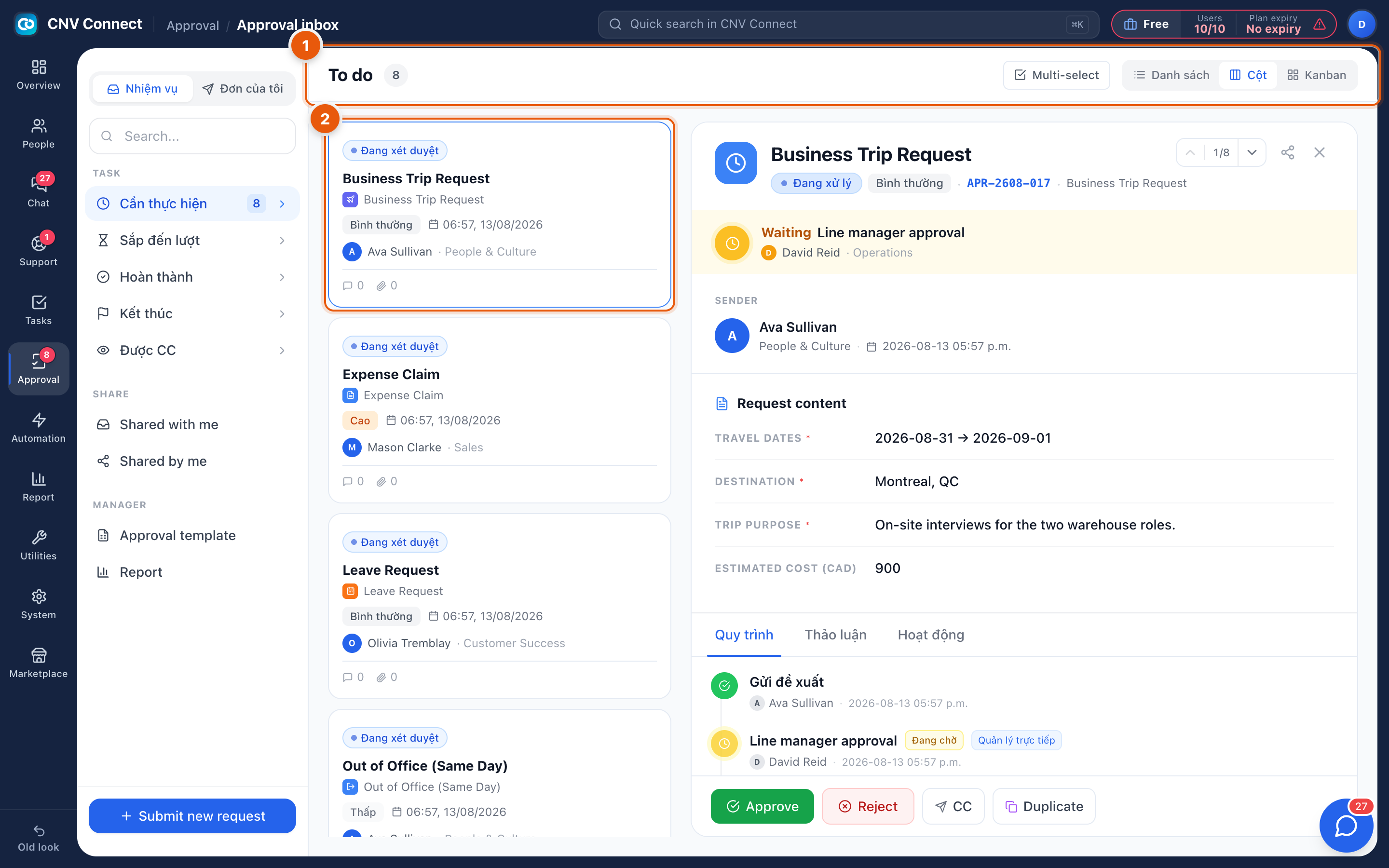
- Queue header — the inbox you came from stays on the left, so you can move to the next request without going back.
- The request — select a card and it opens on the right with its content, the tabs the approval chain, the discussion thread and the activity log, plus the decision buttons.
The action bar carries:
| Button | What it does |
|---|---|
| Approve | Signs your step. If you are the last approver, the request completes |
| Reject | Ends the request; the submitter is notified and must start again |
| CC | Copies somebody in without giving them a decision to make |
| Duplicate | Creates a new request pre-filled from this one — useful for recurring claims |
How to…
Approve properly
- Read the form, then open the approval-chain tab to see who signed before you and what they said.
- If something is unclear, ask in the discussion tab rather than rejecting — the submitter is notified and the answer stays attached to the request.
- Select Approve. Add a comment when the decision is conditional ("approved, book the cheaper flight").
Reject without causing a re-run of the whole process
Say precisely what was wrong. The submitter can duplicate the request, fix the one field and resubmit, which keeps the audit trail readable.
Hand your queue over while you are away
There is no personal delegation switch: cover is arranged in the template, by adding a second approver at that step, or by changing the department manager in Teams.
Notes
- Decisions are final. There is no unapprove — a mistake is corrected by a new request.
- Approved leave and approved attendance corrections write back to the HR records automatically; that is why approving late shows up as absence in the timesheet.
- Everything is timestamped and attributed, which is the point of running these through approvals rather than chat.