
Appearance
Task list
Work assigned to people, with a due date and a status. The list view is the default; the same tasks can be shown as a board, a gantt chart, a calendar or a workload heat map.
Menu path Tasks › Assignments
Address https://hub.cnvconnect.com/tasks
Permission tasks:view
Who uses it everyone
The screen
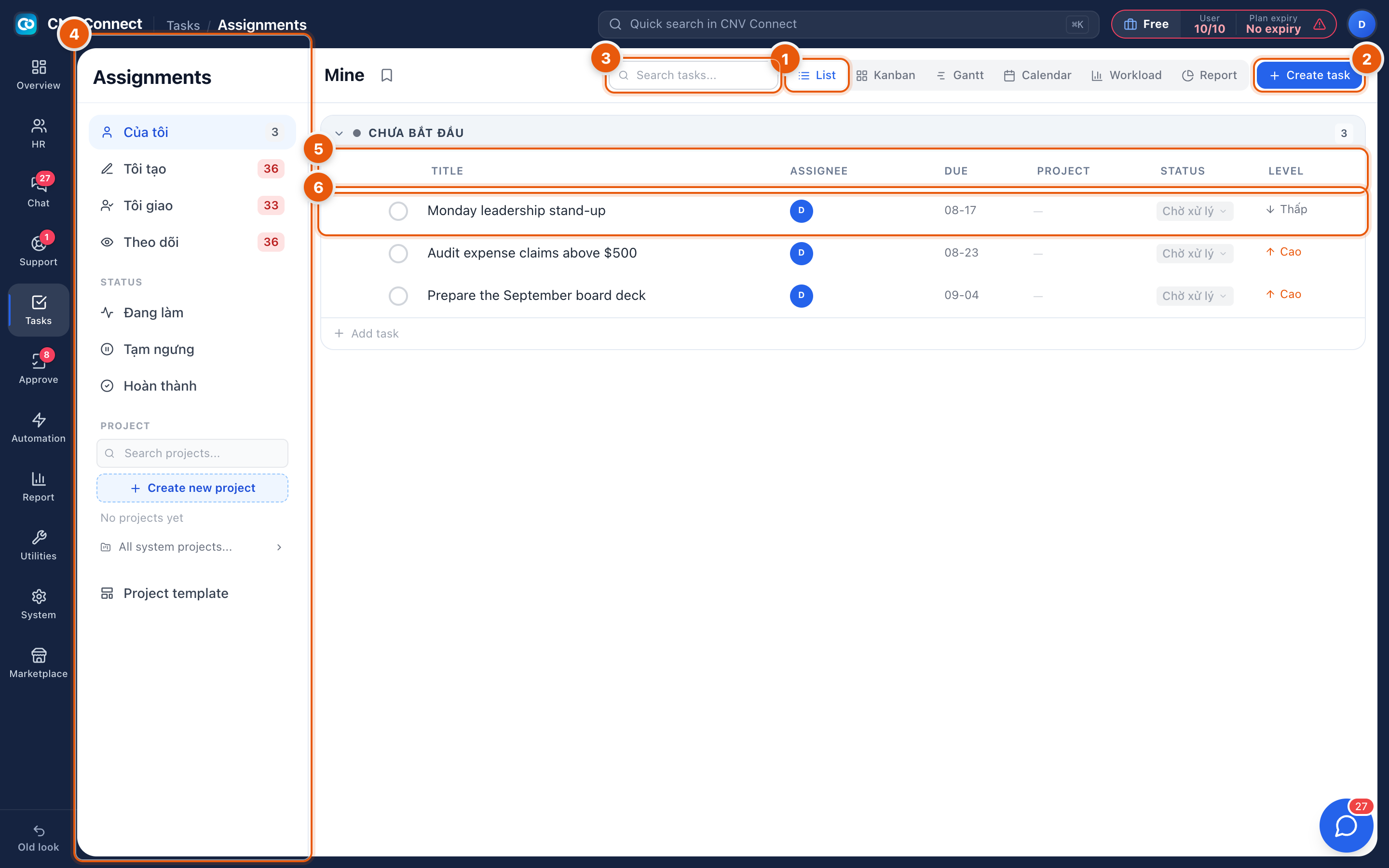
- View switcher — List (shown), Kanban, Gantt, Calendar, Workload and Report. The filters on the left stay in place when you switch.
- Create task — new task.
- Search tasks — filters the current view as you type.
- Filter sidebar — the queues that matter day to day:
- assigned to me
- created by me
- assigned by me to somebody else
- followed by me
- Status: in progress, on hold, done
- Project: search, create a project, browse system projects, and project templates
- Columns — title, assignee, due date, project, status and priority level. Tasks are grouped by stage, with the count on the right of the group header (here: not started).
- A row — the circle on the left completes the task; the title opens it; the status and priority cells can be changed inline. + Add task at the bottom of a group adds one straight into that stage.
How to…
Create a task
- Select Create task, or + Add task inside a group to skip a step.
- Give it a title, an assignee and a due date — those three make it real work rather than a note.
- Set the priority and, if it belongs to a project, pick the project.
Work through your day
Select the assigned-to-me filter, group by due date and start at the top. Complete tasks with the circle on the row rather than opening each one.
Follow work you do not own
Add yourself as a follower on a task. It then appears under the followed filter and you are notified about changes without being responsible for it.
Notes
- The Tasks badge on the rail counts what is assigned to you and due or overdue.
- The status and priority values, and the filter names in the sidebar, are not translated yet and still appear in Vietnamese in the screenshot.
- Tasks can also be created from a chat message or from a ticket, and they appear here like any other.
- Stages are configured per task list — see Stage settings.