
Appearance
Roles
A role is a named bundle of permissions. People get a role; the role decides which menu items and actions they see.
Menu path System › Role
Address https://hub.cnvconnect.com/roles
Permission roles:view
Who uses it administrators
The screen
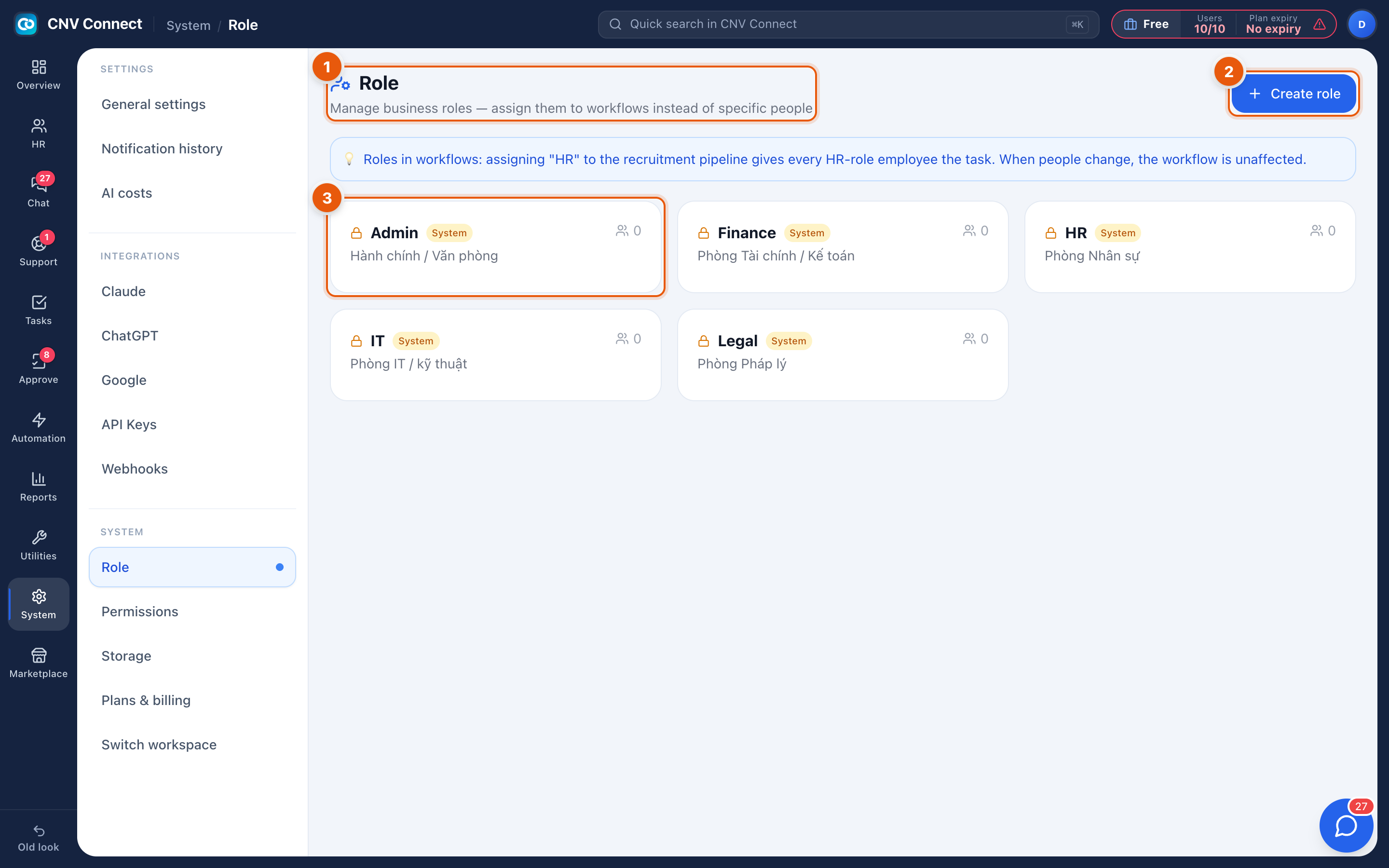
- Page title — manage business roles and assign them to workflows.
- Create role — adds a role.
- A role card — its name, whether it is a System role, its description and how many people hold it. Select it to edit the description, or open Permissions to change what it can do.
What ships with a workspace
A new workspace comes with system roles — Admin, Finance, HR, IT, Legal and so on. They are a starting point; adjust their permissions rather than inventing a parallel set with similar names.
How to…
Create a role
- Select Create role.
- Name it after the job, not the person: Shift supervisor, not Maria's access.
- Describe what it is for, so the next administrator understands the intent.
- Grant its permissions in Permissions.
Give somebody a role
Roles are assigned on the person's record in Employees, or when you invite them.
Retire a role
Move its holders to another role first — the member count on the card tells you how many there are.
Notes
- Fewer roles are better. Five well-drawn roles are easier to reason about than fifteen that differ by one checkbox.
- Somebody with the administrator role bypasses menu filtering entirely, which is why it should be rare.
- Roles control what somebody may do; teams control what they are part of. Approval routing follows teams, not roles.