
Appearance
Claude integration
Connects the workspace to Anthropic's Claude models so AI features can run. Without a key here (or in ChatGPT), the AI features stay switched off.
Menu path System › Integrations › Claude
Address https://hub.cnvconnect.com/settings/integrations/claude
Permission int_claude:view
Who uses it administrators
The screen
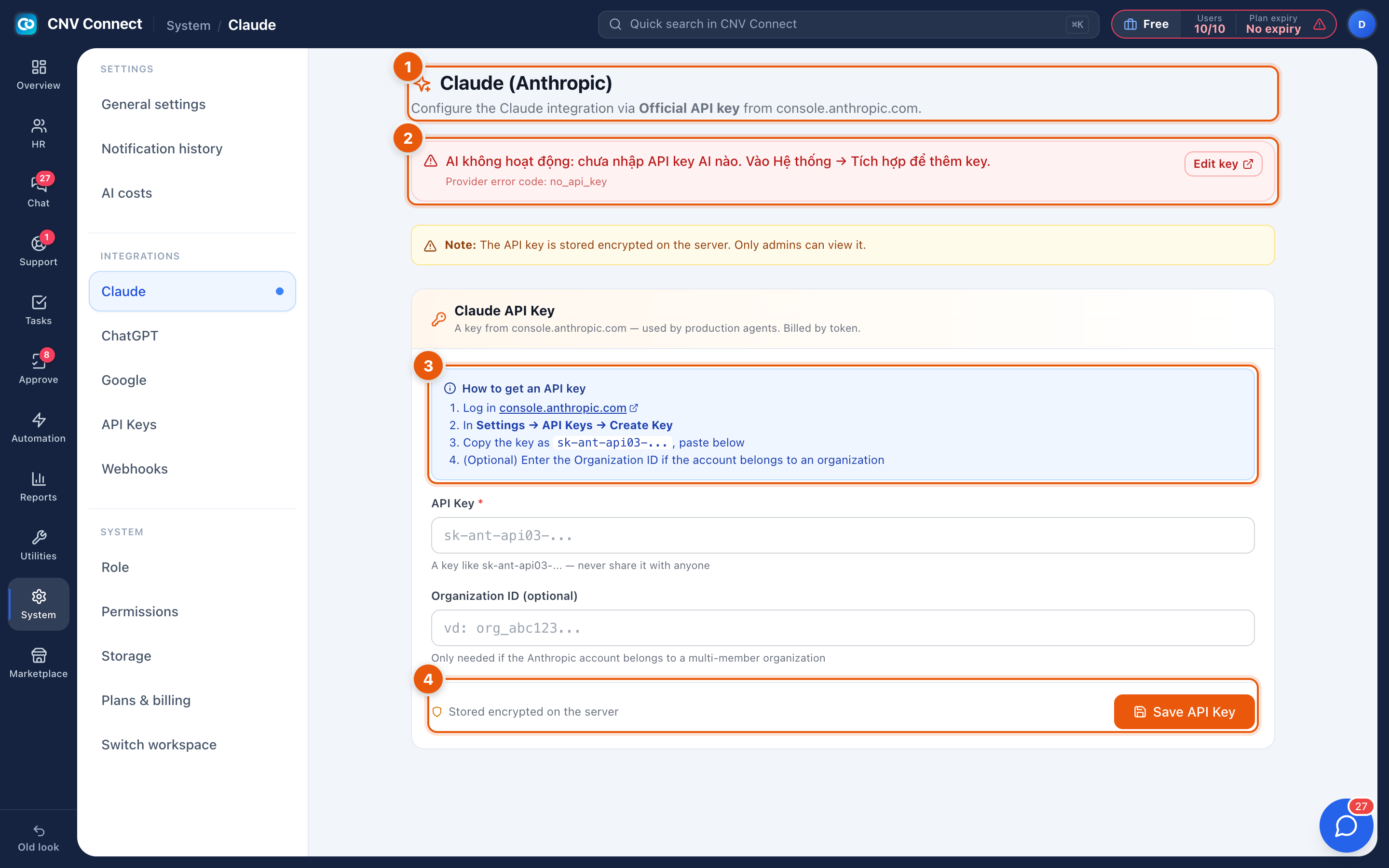
- Page title — configure the Claude integration.
- Status banner — warns while no AI key of any kind is stored: AI is not working — no AI API key has been entered. The banner itself is not translated yet.
- How to get an API key — the steps, in-page: sign in to
console.anthropic.com, open Settings → API Keys, create one, and copy it. - Claude API Key and Save — the key field (
sk-ant-api03-…), the note that it is stored encrypted on the server, and Save API Key. An existing key is masked; Edit key replaces it.
How to…
Connect Claude
- Create a key in the Anthropic console.
- Paste it into Claude API Key and select Save API Key.
- The warning banner disappears once a key is stored.
- Watch AI cost for the first calls to confirm it is really being used.
Rotate a key
Select Edit key, paste the new one and save. Revoke the old key in the Anthropic console afterwards, not before — otherwise AI features fail in the gap.
Notes
- The key is stored encrypted and is never shown again in full after saving.
- Usage is billed by Anthropic to the account that owns the key; CNV Connect only records what was spent, in AI cost.
- A key with no credit fails at call time, not at save time — a saved key is not proof that it works.