
Appearance
Board view
The same tasks as the list, arranged as columns you drag cards between. Use it for a stand-up, where "what moved yesterday" is the question.
Menu path Tasks › Assignments → Kanban
Address https://hub.cnvconnect.com/tasks?view=board
Permission tasks:view
Who uses it teams running a daily or weekly cadence
The screen
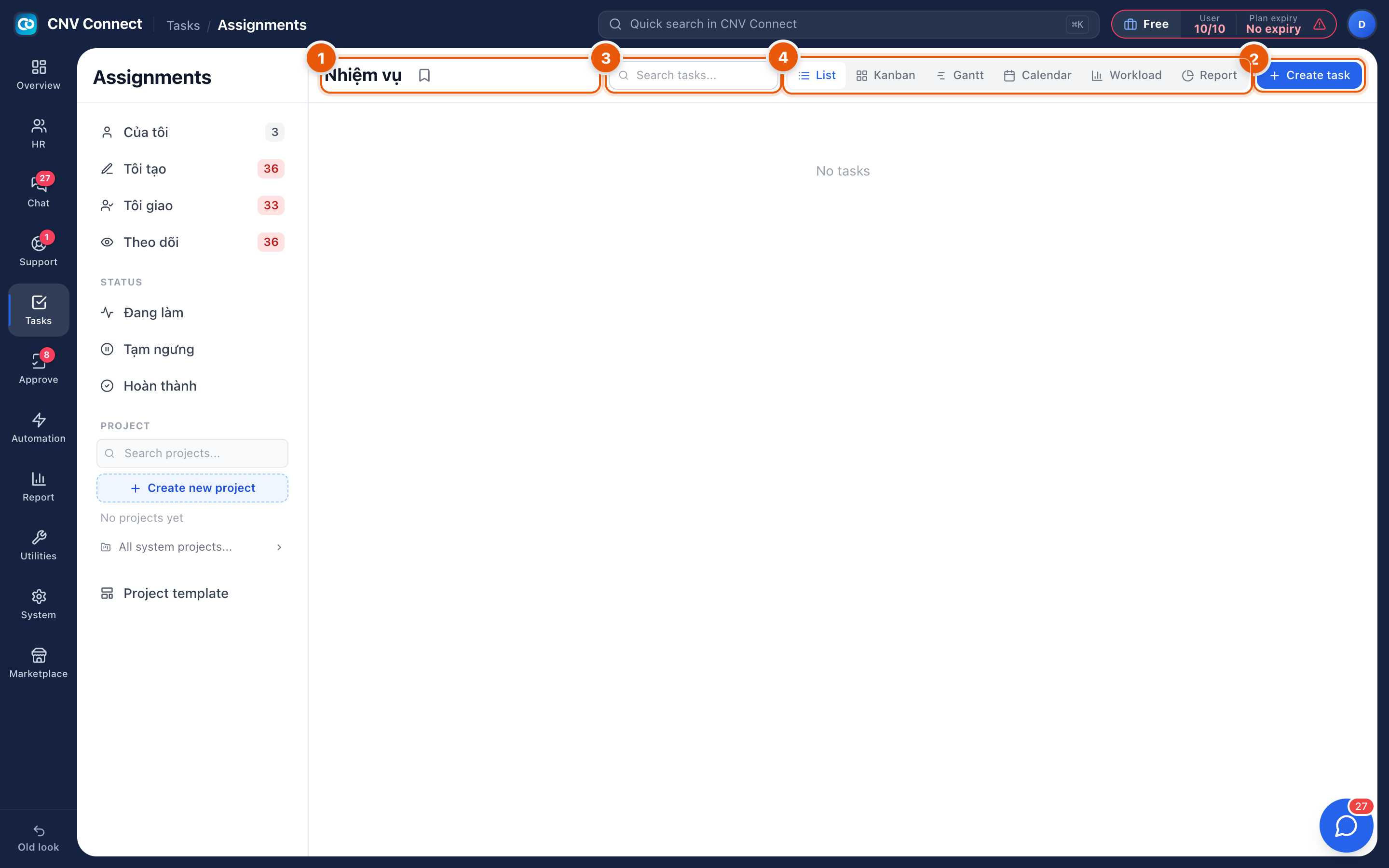
- Page title — the task module.
- Create task — adds a card, which lands in the first column.
- Search — narrows the cards shown across every column.
- View switcher — Kanban is selected; the other views show exactly the same tasks.
How to…
Run a stand-up
- Filter to the team or project.
- Read the board right to left — nearly done first — and ask about anything that has not moved.
- Drag cards as decisions are made; the change is saved immediately and the assignee is notified.
Change what the columns are
Columns are the stages of the task list you are looking at. Configure them in Stage settings.
Notes
- The board shows the tasks the current filters allow. An empty board with a full list usually means a filter in the sidebar is still on.
- Dragging changes the stage only. Due date, assignee and priority are edited on the card or in the task itself.
- For capacity rather than progress, use the workload view.