
Appearance
Permissions
The switchboard: for each role, which pages and actions it may use.
Menu path System › Permissions
Address https://hub.cnvconnect.com/permissions
Permission permissions:view
Who uses it administrators
The screen
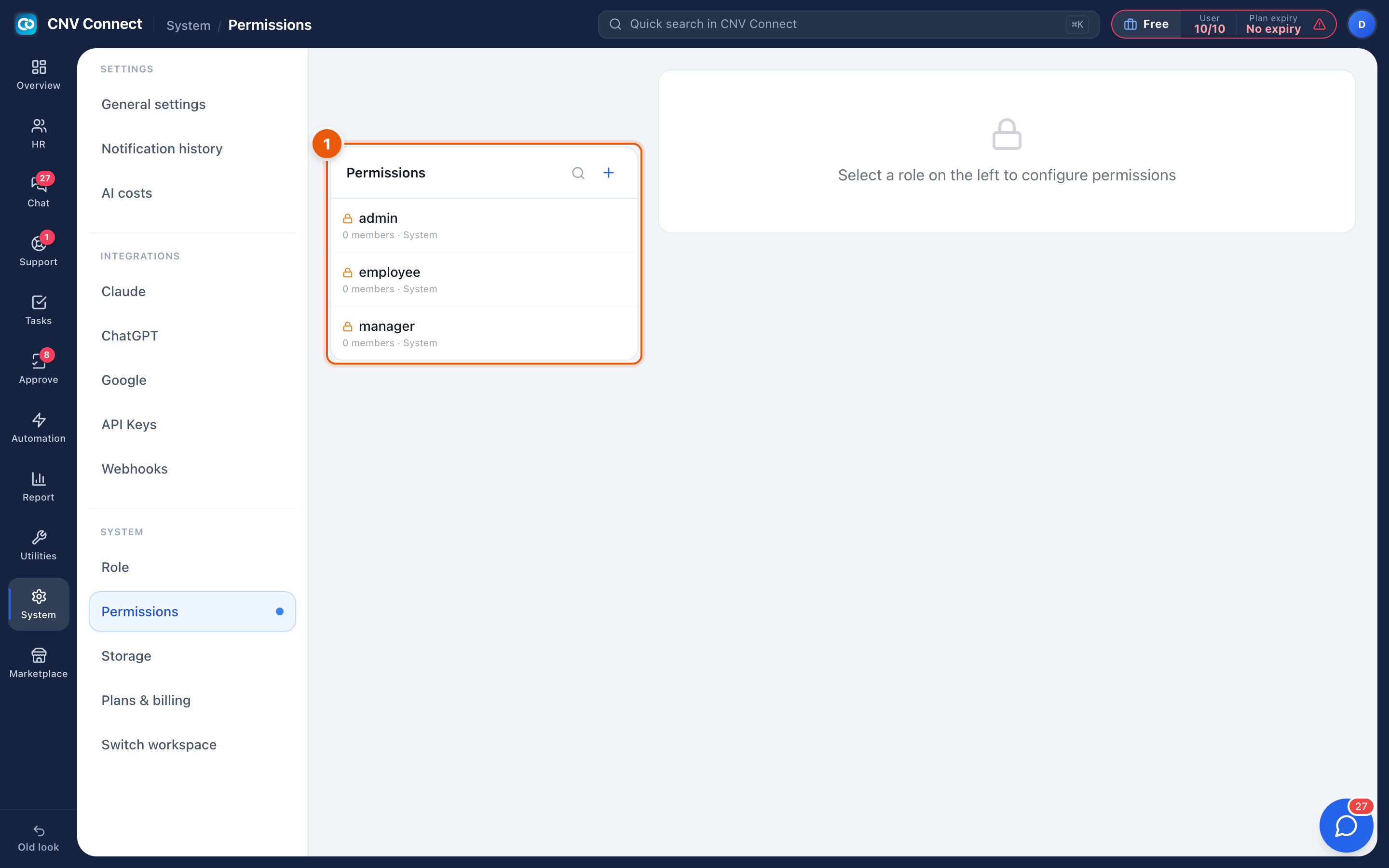
- The two columns — every role on the left with its member count and whether it is a system role; the configuration panel on the right, which says select a role on the left to configure permissions. Once a role is chosen, its permissions appear grouped by module, each a switch.
How permissions work
Every menu item in this guide names the permission it needs — for example employees_list:view for Employees. Turning that permission off for a role removes the item from the menu of everybody holding it, and typing the address by hand does not get around it: the workspace bounces them back to the dashboard and the server refuses the request as well.
| Suffix | Means |
|---|---|
:view | May open the page and read it |
:create, :edit, :delete | May change the data |
* | Everything — effectively administrator |
How to…
Give a role access to a module
- Select the role.
- Find the module group and switch on the
:viewpermissions for the pages it needs. - Add the action permissions only where that role really acts — most people need to read far more than they need to edit.
- Save, then sign in as somebody with that role (or ask them) to confirm the menu looks right.
Work out why somebody cannot see a page
- Find the permission on that page's article in this guide.
- Check whether the person's role has it switched on here.
- If it is on and they still cannot see the page, confirm which role they actually hold on their employee record — that is usually the answer.
Notes
- Changes take effect on their next page load; they do not need to sign out.
- Removing
:viewwhile leaving:editon is meaningless — the page is gone. - Being an administrator overrides everything on this page, which is why the number of administrators is a security decision, not an administrative convenience.