
Appearance
Working a ticket
The ticket page is a workspace: the conversation in the middle, the facts on the right, and the status control at the top. Everything an agent does to a ticket happens here.
Menu path Support › Ticket → select a ticket
Address https://hub.cnvconnect.com/tickets/<id>
Permission support_tickets:view
Who uses it support agents
The screen
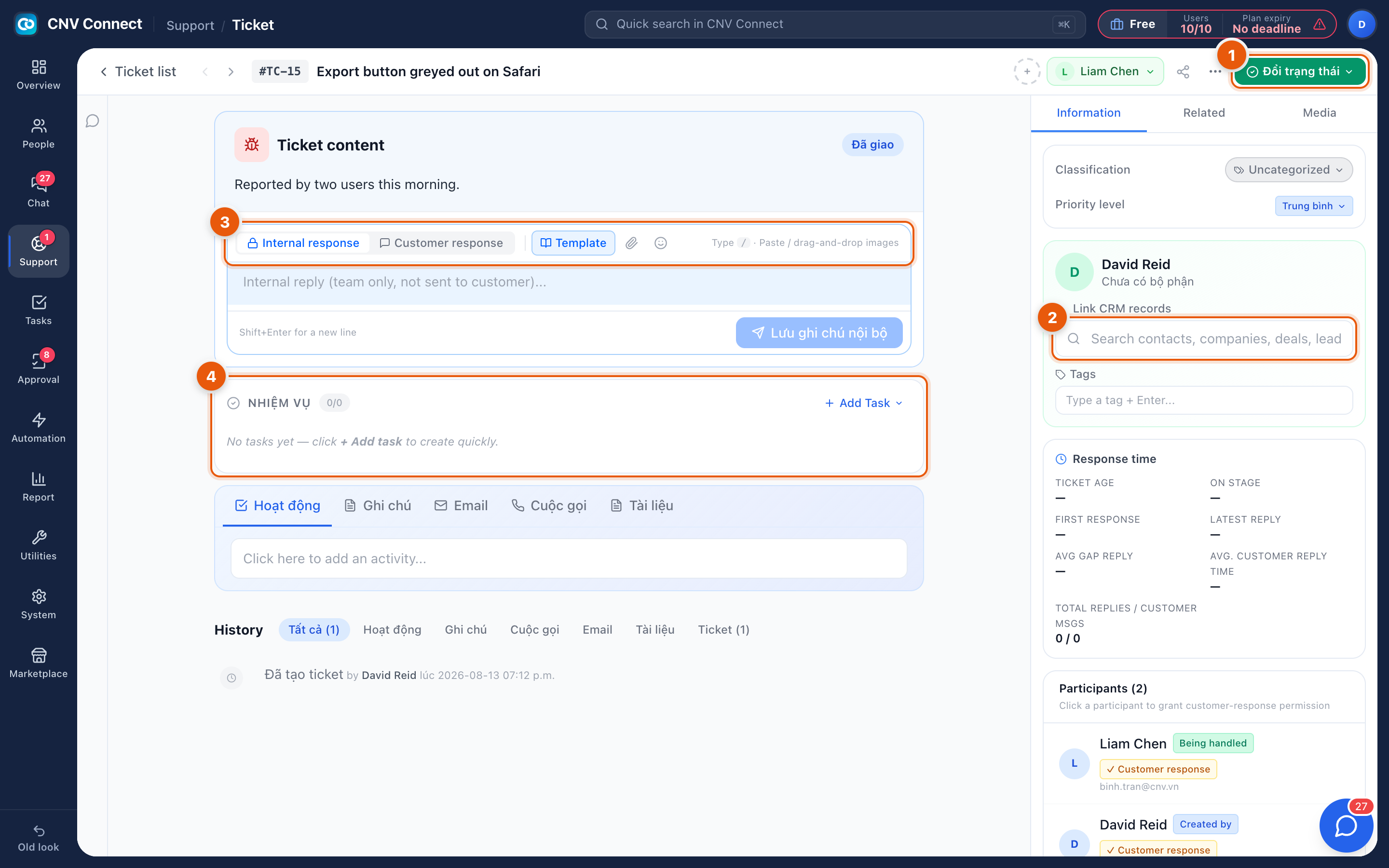
- Change status — the green button top right moves the ticket through its lifecycle: open, in progress, waiting on customer, resolved, closed. The header bar beside it holds the ticket code, the title, the current handler and the share menu.
- Link CRM records — attach the contact, company or deal the ticket belongs to, so the history follows the customer.
- Reply toolbar — the most important control on the page: Internal response (a note for the team; the customer never sees it), Customer response (a reply delivered to the requester) and Template (a saved reply). The paper-clip attaches a file, and images can be pasted or dropped straight in.
- Tasks — real tasks attached to this ticket, for work that needs somebody else or another day.
The right-hand column also holds Classification and Priority level, the requester, free-text Tags, a Response time panel (ticket age, time on stage, first response, latest reply, average gap) and Participants — the people who may reply to the customer.
Below the reply box, the Activity / Note / E-mail / Call / Document tabs record what happened outside the ticket, and History shows the audit trail.
How to…
Reply to the customer
- Select Customer response.
- Write the reply, or insert a Template and edit it.
- Attach files if needed and send. The SLA first-response clock stops on the first customer response — internal notes do not stop it.
Hand a ticket to somebody else
Change the handler in the header. The new owner is notified, and the ticket moves into their I need to do queue.
Park a ticket while you wait
Set the status to Waiting on customer. That is what keeps your queue honest and it is also what the SLA report uses to separate your delay from theirs.
Close it
Set the status to resolved. Depending on ticket settings, the ticket auto-closes after a number of days and can be reopened within a window.
Notes
- Internal notes are permanent and visible to every agent — write them as if the customer might read them one day, because a copied-out history sometimes is.
- Adding a participant grants them permission to answer the customer; that is deliberate, not incidental.
- Several controls on this page are not translated yet and still appear in Vietnamese: the save-internal-note button, and the activity, note, call, document and "all" tabs under the reply box.