
Appearance
Workload view
Who is carrying how much. The workload view groups open tasks by assignee so you can see the person with fourteen things due this week next to the person with two.
Menu path Tasks › Assignments → Workload
Address https://hub.cnvconnect.com/tasks?view=workload
Permission tasks:view
Who uses it managers, team leads
The screen
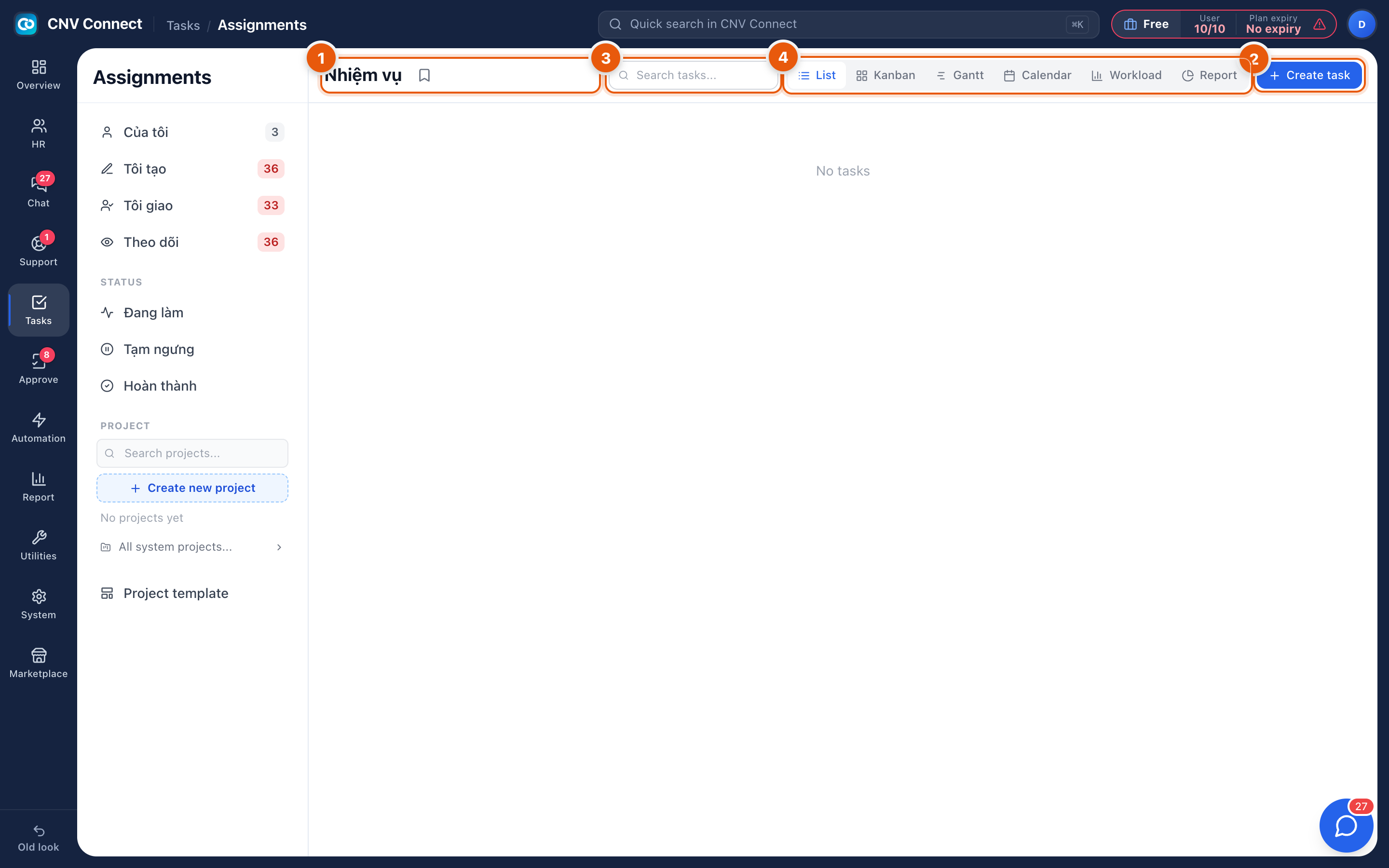
- Page title — the task module.
- Create task — new task.
- Search — narrows which tasks are counted.
- View switcher — Workload selected.
How to…
Rebalance a week
- Filter to the team or project.
- Find the fullest lane and the emptiest.
- Open a task from the busy lane and change its assignee, or drag it if the view supports it. The new owner is notified.
Spot unassigned work
Tasks with no assignee do not belong to anybody's lane — check the list view with the assignee column sorted, so nothing sits waiting for a volunteer.
Notes
- Workload counts tasks, not hours; a fifteen-minute task and a two-day task look the same. Use it as a first signal, then read the actual tasks.
- Only open tasks are counted. Completed work drops out of the picture, which is why the view is about capacity rather than performance.
- People appear in the view because they are assignees; somebody with no tasks may simply not be using the module.