Appearance
Team chat
Internal messaging built into the workspace: channels for teams and projects, direct messages, files, and bots that post what the other modules are doing.
Menu path Chat
Address https://hub.cnvconnect.com/chat
Permission none, but the module must be switched on for the workspace
Who uses it everyone
The screen
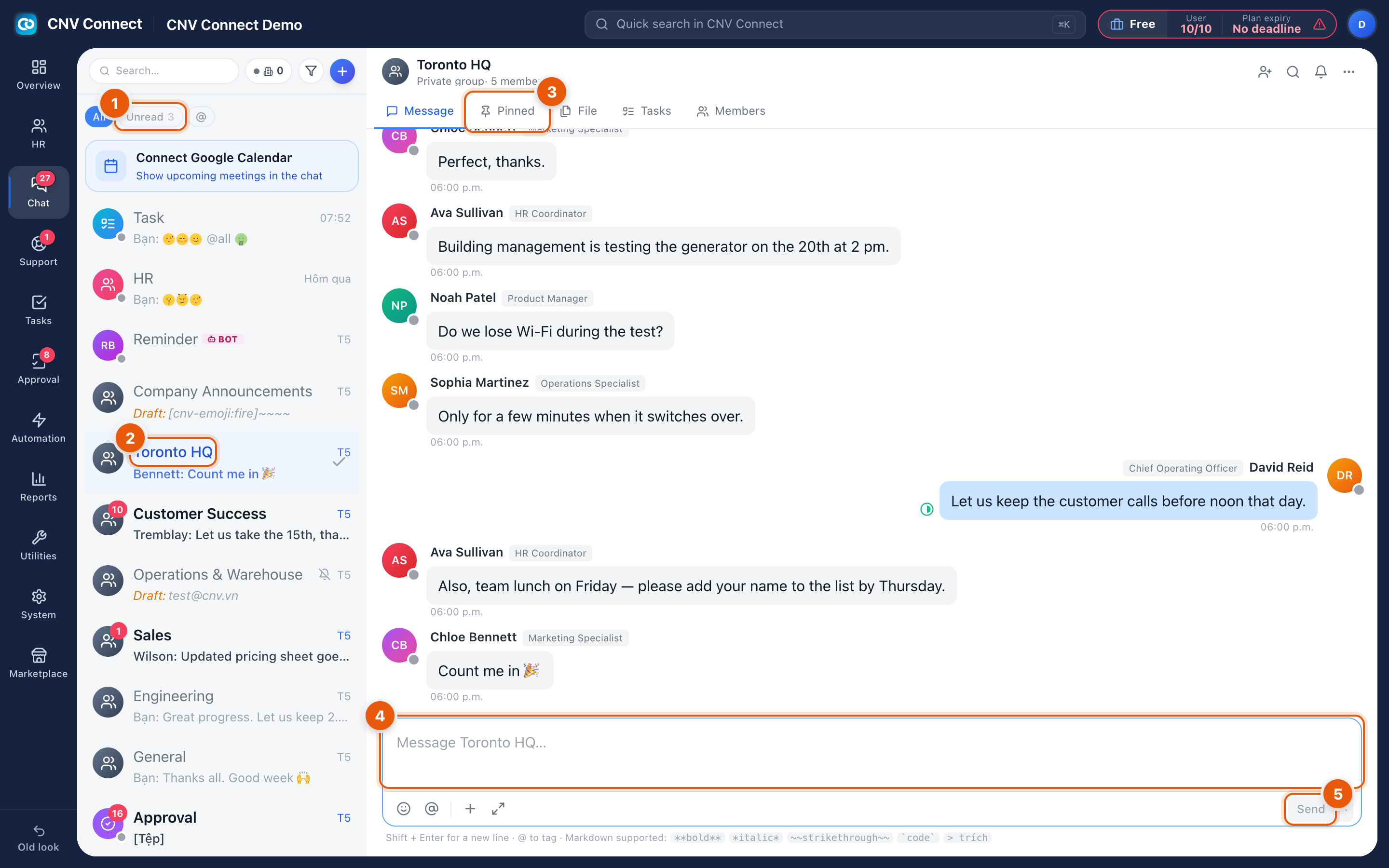
- Filters — All, Unread with a count, and @ for conversations where somebody mentioned you. The search box above them searches messages and channels.
- Conversation list — channels, direct messages and bots, most recent first. A bold row is unread; a red number counts unread messages; a crossed-out bell means the conversation is muted; Draft: shows a message you started and never sent.
- Room tabs — Message, Pinned, File, Tasks and Members for the open conversation. File is the fastest way to find a document somebody shared last week.
- Message box — Shift+Enter for a new line, @ to mention someone, and Markdown for formatting (
**bold**,*italic*,~~strikethrough~~,`code`,> quote). The row underneath adds emoji, mentions, attachments and full-screen editing. - Send — the arrow beside it schedules the message for later; a scheduled message shows a banner above the box until it goes out.
How to…
Start a conversation
Use + at the top of the list: create a channel for a team or topic, or start a direct message with one or more colleagues.
Find something that was said
Search from the box above the filters. Narrow by channel first if you remember where it was — it is usually faster than scrolling.
Keep an important message visible
Pin it. Pinned messages have their own tab, which is where new joiners look for the working agreement of a channel.
Turn a message into work
Use the message menu to create a task from it, or open the room's Tasks tab to see what is already tracked for that channel.
Stop a noisy channel
Mute it from the conversation menu. Muted channels stop counting towards the badge on the rail but stay in the list.
Notes
- The Chat badge on the rail counts unread messages across every conversation, and updates live rather than on a timer.
- The floating chat button on every other page opens the same conversations without leaving the page you are on.
- Bots post into channels — for example Reminder BOT, and the Approval and Task bots that announce what needs your attention. They are set up in Bots.
- A few strings in chat are not translated yet — the "you" prefix on your own messages, relative dates such as "yesterday" and weekday abbreviations, "saved messages" and the "[file]" placeholder still appear in Vietnamese.