
Appearance
Leave requests
Every leave request in the company, with its dates, its length in days and whether it has been approved. Employees raise requests from the mobile app or through Approvals; this page is the register.
Menu path HR › Leave
Address https://hub.cnvconnect.com/leaves
Permission leaves:view
Who uses it HR, managers, payroll
The screen
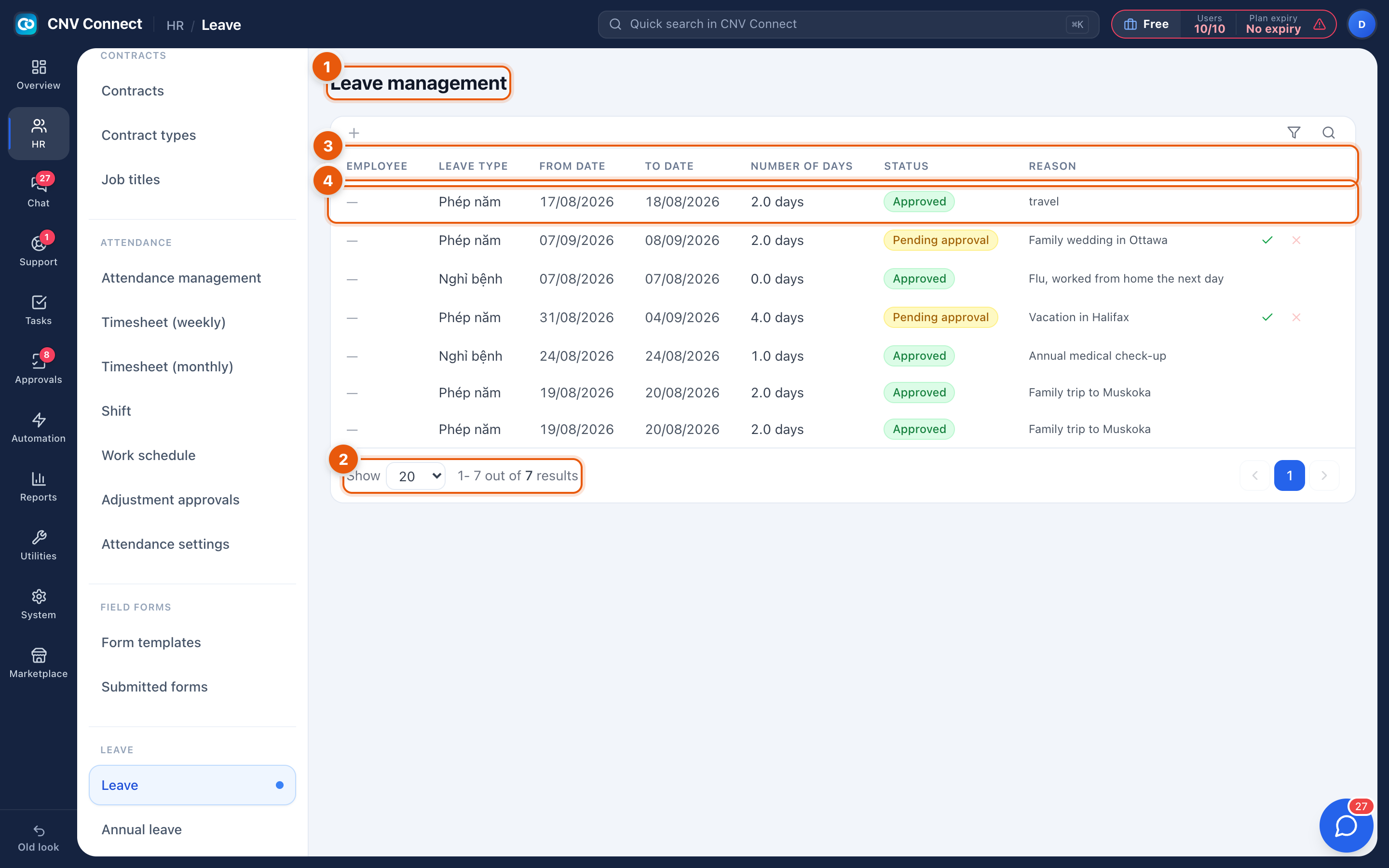
- Page title — leave management.
- Page size and result count — 10, 20, 50 or 100 rows at a time.
- Columns — employee, leave type (annual, sick, unpaid and so on), from and to dates (inclusive), number of days (half days count as 0.5), status and the reason the employee wrote.
- A row — select it to see the full request, its approval trail and any attachment.
How to…
Find out who is off next week
Sort by From date and read the rows in that range, or open the monthly timesheet, where approved leave shows as a code on each day.
Approve or reject a request
Leave routes through the approval chain defined in its approval template — usually the person's department manager. Approve it from the approval inbox; the decision appears here.
Cancel leave that is no longer needed
The employee cancels the request from the app. If it was already approved, cancelling returns the days to their balance.
Notes
- Approved leave suppresses absent on the attendance record for those days; pending leave does not. Approving late is the usual reason somebody shows as absent for a day they had booked off.
- Leave in days is calculated against the working week — public holidays from Holidays are not deducted from the balance.
- The register shows every employee you have permission to see; managers with team-scoped permissions see only their own people.