
Appearance
Weekly timesheet
The week at a glance: everyone down the left, Monday to Sunday across the top, and each person's clock-in and clock-out inside every cell. It is the fastest way to spot a pattern — somebody always late on Mondays, or a shift nobody covered.
Menu path HR › Timesheet (weekly)
Address https://hub.cnvconnect.com/timesheet
Permission timesheet:view
Who uses it shift managers, HR
The screen
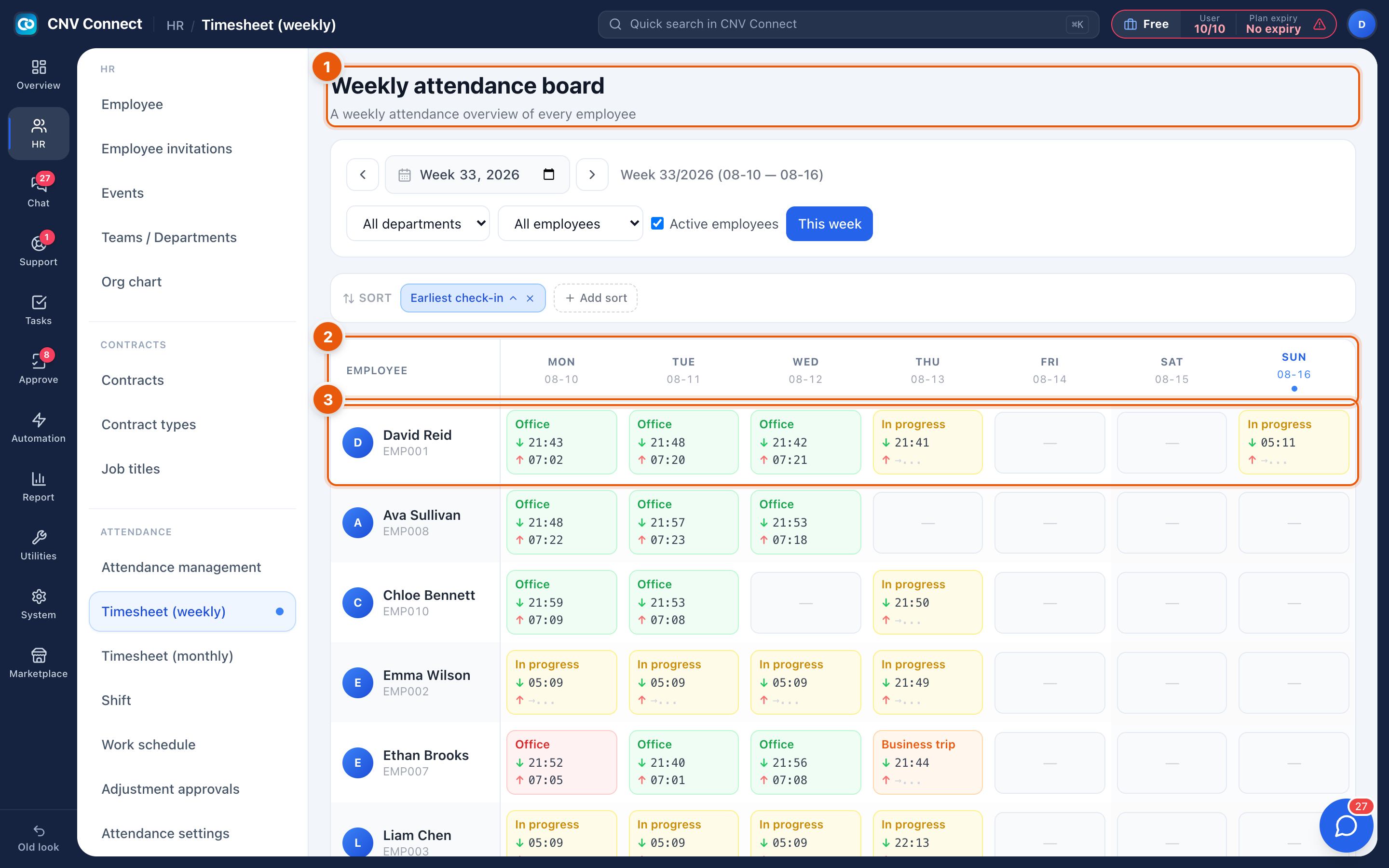
- Page title and week — the weekly attendance board, with the week picker (Week 33/2026 (08-10 — 08-16)), This week, the department and employee filters and Add sort on the same row.
- Grid header — the seven days of the chosen week.
- An employee row — each cell shows the type (Office, On-site, In progress), the clock-in time with a down arrow and the clock-out with an up arrow. A dash means nothing was recorded.
How to…
Move between weeks
Use the week picker; This week returns to today's week. The board always shows exactly seven days, so a fortnight is two visits.
Check one team's coverage
Set the department filter, then read down each day column: empty cells are the gaps.
Get from a cell to the underlying record
Cells summarise attendance records. For the full evidence — position, photo, accuracy — open that page for the same person and date.
Notes
- In progress means the person is still clocked in; the cell completes itself when they clock out.
- Rows come from employee records, so somebody who never installed the mobile app appears with an empty week rather than being missing.
- For a month of data, or for the leave and holiday codes used in payroll, use the monthly timesheet.