
Appearance
Late penalties
Rules that turn lateness into a number: after so many minutes late, so much is deducted or so many points are recorded. Rules are defined here and attached to shifts.
Menu path HR › Settings › Late penalties
Address https://hub.cnvconnect.com/penalties
Permission penalties:view
Who uses it HR, payroll
The screen
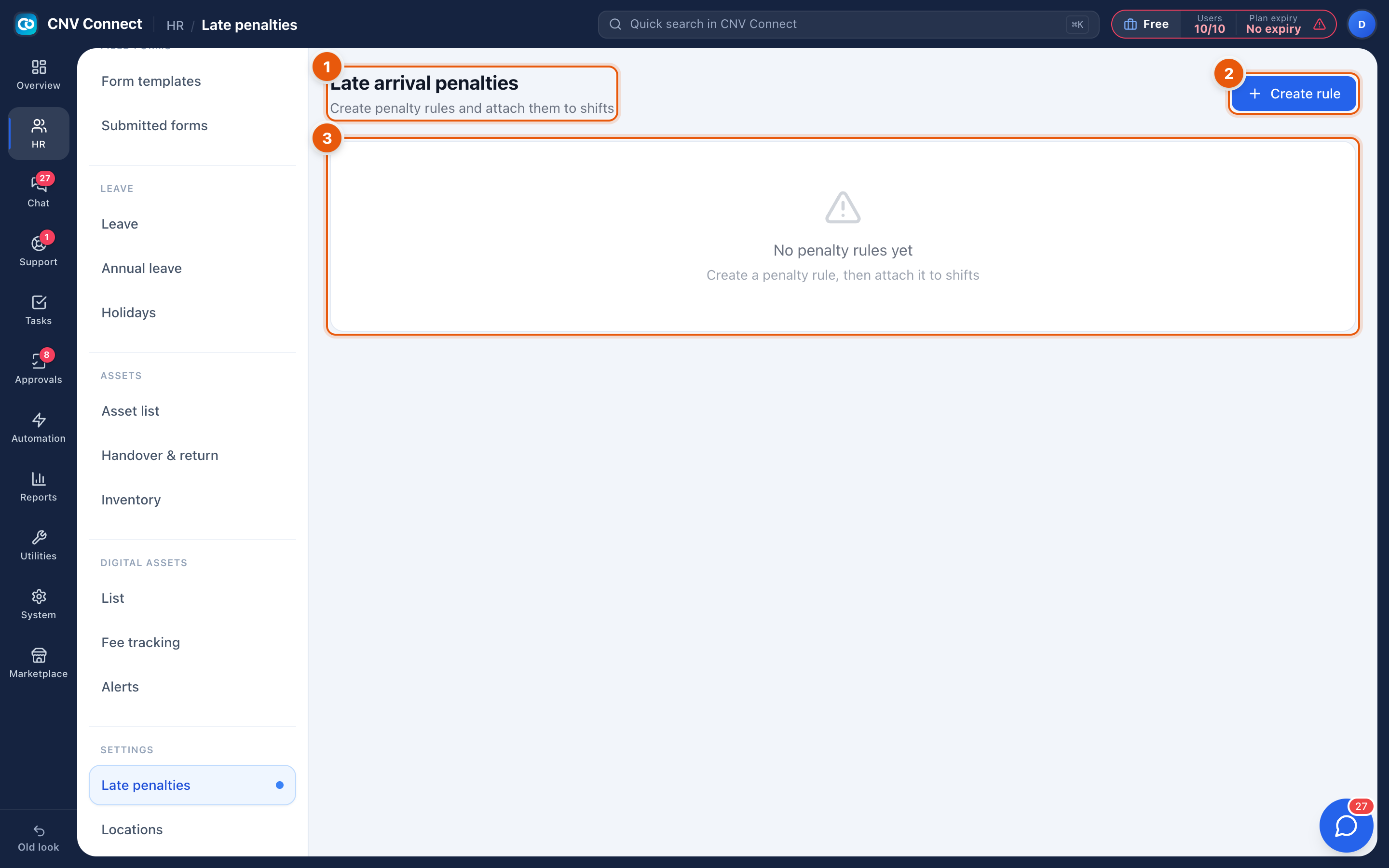
- Page title — late arrival penalties: create penalty rules and attach them to shifts.
- Create rule — defines a penalty band.
- Empty state — until a rule exists, lateness is only reported, never charged.
How to…
Create a penalty rule
- Select Create rule.
- Name it, then set the bands — for example 1–15 minutes late, 16–30 minutes, more than 30 minutes — and what each band costs.
- Save, then attach the rule to the shifts it applies to. A rule that is not attached to anything never fires.
Check what a rule has produced
Lateness itself is visible in Attendance records and the monthly timesheet; penalties calculated from it appear in the attendance reports and in the payroll export.
Notes
- Penalties are evaluated from the attendance record, so an approved correction can remove a penalty after the fact.
- Grace periods belong to the shift, not the rule: if a shift allows five minutes' grace, the rule only sees lateness beyond it.
- Deleting a rule stops future penalties; it does not refund past ones already exported to payroll.