
Appearance
General settings
The workspace's identity: what it is called, what it looks like, and the company details that appear on documents.
Menu path System › General settings
Address https://hub.cnvconnect.com/settings
Permission settings:view
Who uses it administrators
The screen
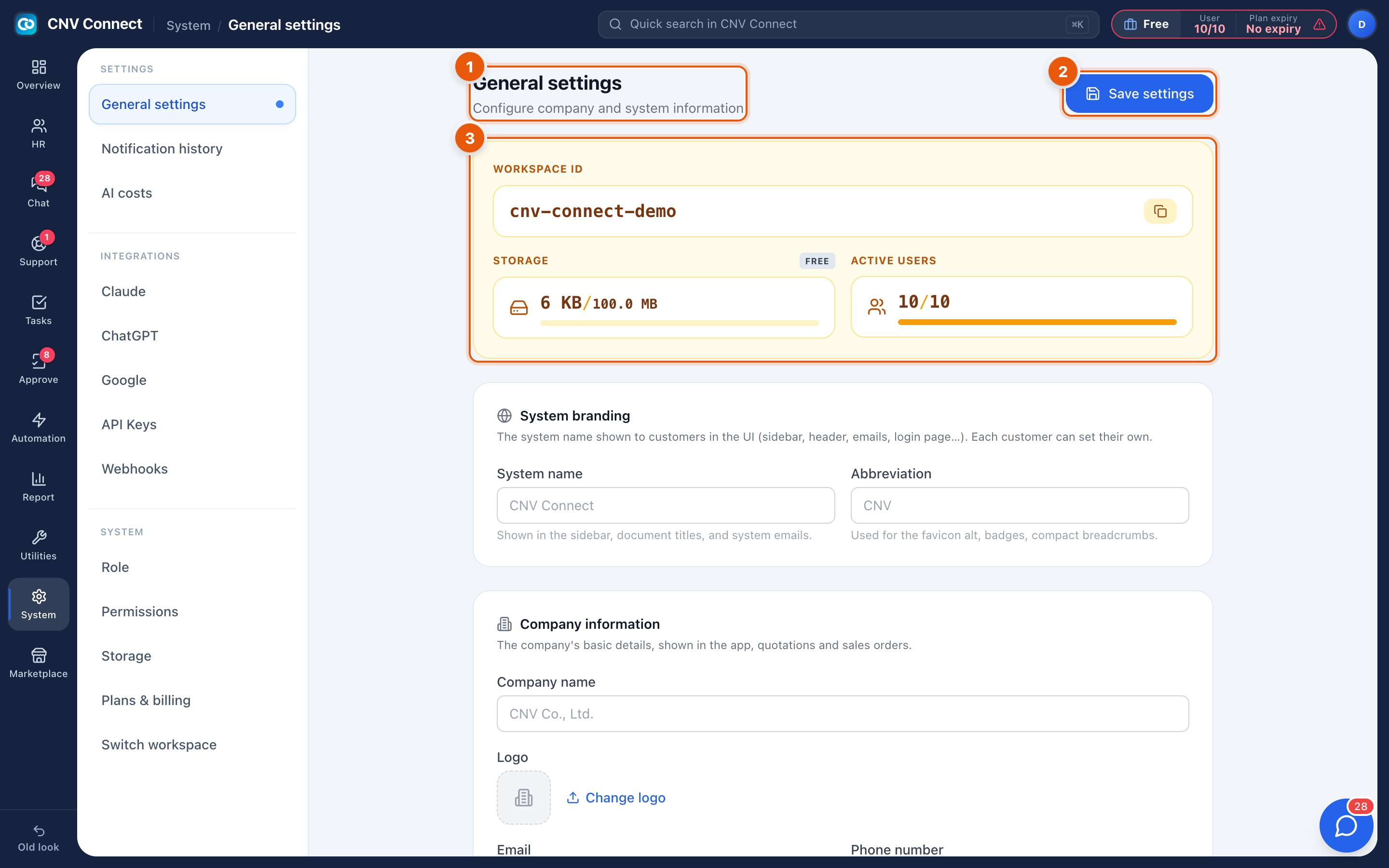
- Page title — configure company and system information.
- Save settings — nothing on this page takes effect until you save.
- Workspace identity — the workspace ID (the short code used in addresses and support references, with a copy button), storage used against your plan's allowance, and active users against your seat count. Both bars turn amber as they fill.
Below that:
| Panel | Fields |
|---|---|
| System branding | System name — shown in the sidebar, document titles and system e-mails; Abbreviation — used for the favicon, badges and compact breadcrumbs |
| Company information | Company name, logo, e-mail, phone number and address — the details printed on documents the workspace generates |
How to…
Put your own name and logo on the workspace
- Type your company's name into System name and a two- or three-letter Abbreviation.
- Upload a logo with Change logo — a square image reads best in the sidebar.
- Save, then reload the page to see the sidebar update.
Keep the company details accurate
The Company information block is what appears on generated documents, so treat a change of address here as a change of address everywhere.
Watch the two bars
Storage and active users are the two limits that stop work: an exhausted seat count blocks new invitations, and full storage blocks uploads. Both link to Plan and billing.
Notes
- The greyed text inside System name and Abbreviation is the name currently in force, not an empty field: leaving the box blank keeps that name. Type over it to change it.
- Changing the system name does not change the web address; the workspace ID stays as it is.
- The workspace ID is the fastest way for support to identify your workspace — copy it with the button rather than retyping.