
Appearance
Automation flows
"When this happens, do that." Flows watch for an event — a task assigned, a ticket created, a date reached — and then notify somebody, create a record, or update a field, without anyone remembering to do it.
Menu path Automation
Address https://hub.cnvconnect.com/automation
Permission none beyond seeing the module
Who uses it administrators, process owners
The screen
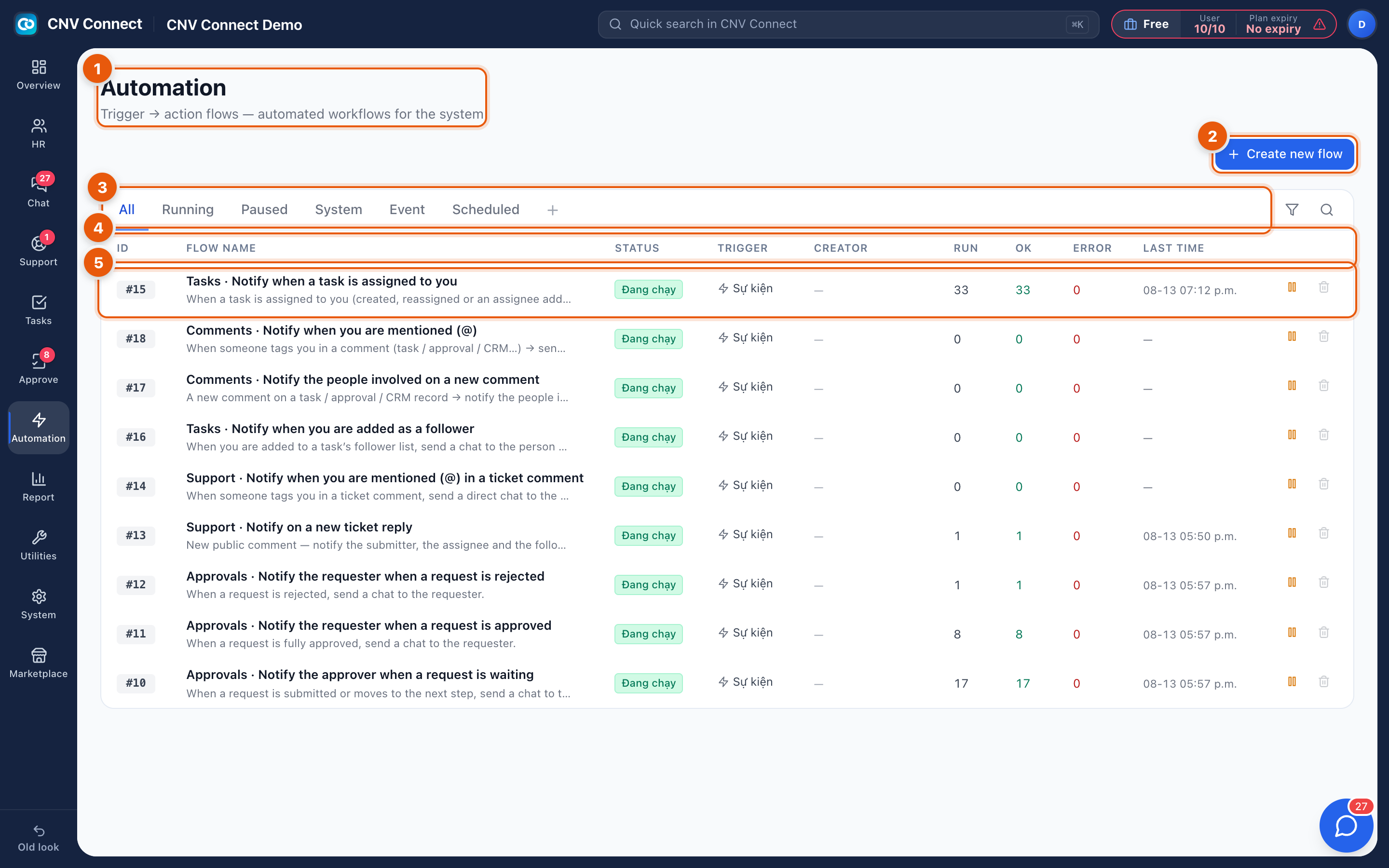
- Page title — trigger → action flows.
- Create new flow — start a flow.
- Filters — All, Running, Paused, and by trigger kind: System, Event, Scheduled.
- Columns — ID, flow name with its trigger described underneath, status (running or paused), trigger kind (event, scheduled or system), creator, how many times it ran, how many succeeded, how many failed, and the most recent run.
- A row — opens the flow builder.
Kinds of trigger
| Trigger | Fires when | Typical use |
|---|---|---|
| Event | Something happens in a module | A task is assigned → notify the assignee |
| Scheduled | A time you choose | Every Monday 08:00 → post the week's roster |
| System | Built-in workspace events | Shipped with the workspace, usually not editable |
How to…
Read the health of your automations
Scan the Error column. A flow with a rising error count is failing silently — open it and check its run log.
Pause a noisy flow
Set it to paused from the list. It stops firing immediately and keeps its history, so you can turn it back on after you fix the condition.
Start from what already exists
A new workspace ships with useful flows already running (task assignment notices, approval reminders). Open one and copy its shape before building from scratch.
Notes
- Flows can post into team chat through a bot, which is the most common action.
- People can see which flows target them personally in their personal notification settings.
- Status and trigger values in the table are not translated yet and still appear in Vietnamese in the screenshot.