Appearance
Working a task
Opening a task shows everything about it in a side panel: who owns it, when it is due, what has to be done, the subtasks, the files and the conversation.
Menu path Tasks › Assignments → select a task
Address https://hub.cnvconnect.com/tasks?taskId=<id>
Permission tasks:view
Who uses it everyone
The screen
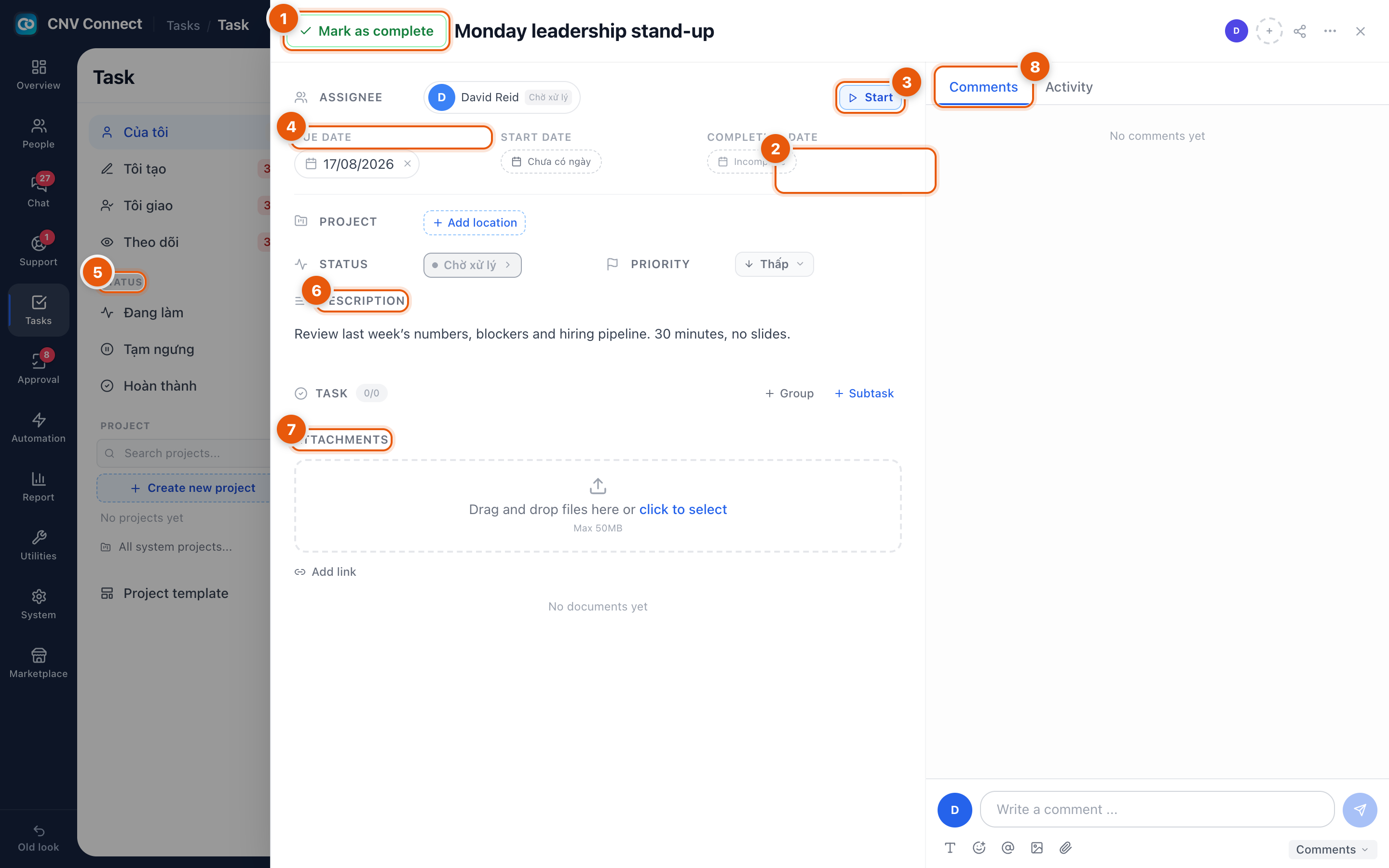
- Mark as complete — finishes the task. It disappears from open queues and stops counting towards the badge on the rail.
- Assignee — who owns it. Changing it notifies the new owner.
- Start — moves the task into in progress and stamps the start date, so the time on the task is measured rather than guessed.
- Dates — due date, start date and completion date. An empty start date reads "no date set" and an unfinished task reads "incomplete".
- Status and priority — pending, in progress or done, and high, normal or low. Both values are not translated yet and appear in Vietnamese.
- Description — the instructions. Keep it specific enough that the assignee does not have to ask a question to start.
- Attachments — drag and drop, up to 50 MB per file, plus Add link for anything that lives elsewhere.
- Comments and Activity — discussion on the left tab, the audit trail on the right. The composer at the bottom takes mentions, emoji, images and files.
Between the description and the attachments sit Subtasks — a checklist inside the task, with + Group and + Subtask for larger pieces of work.
How to…
Take a task from start to finish
- Open it and read the description.
- Select Start so everyone can see it is being worked on.
- Tick subtasks as you go.
- Comment when you need something from somebody — mention them with @ so they are notified.
- Select Mark as complete.
Break a big task into steps
Use + Subtask for the steps and + Group when there are enough of them to need headings. The counter beside TASK shows completed against total.
Hand a task over
Change the assignee and leave a comment explaining where you got to. The activity trail keeps the earlier owner in the history.