
Appearance
Sign in and passwords
Address https://hub.cnvconnect.com/login
You need the e-mail address your workspace administrator invited, or a Google account linked to it
Permission none — this is the front door
The sign-in screen
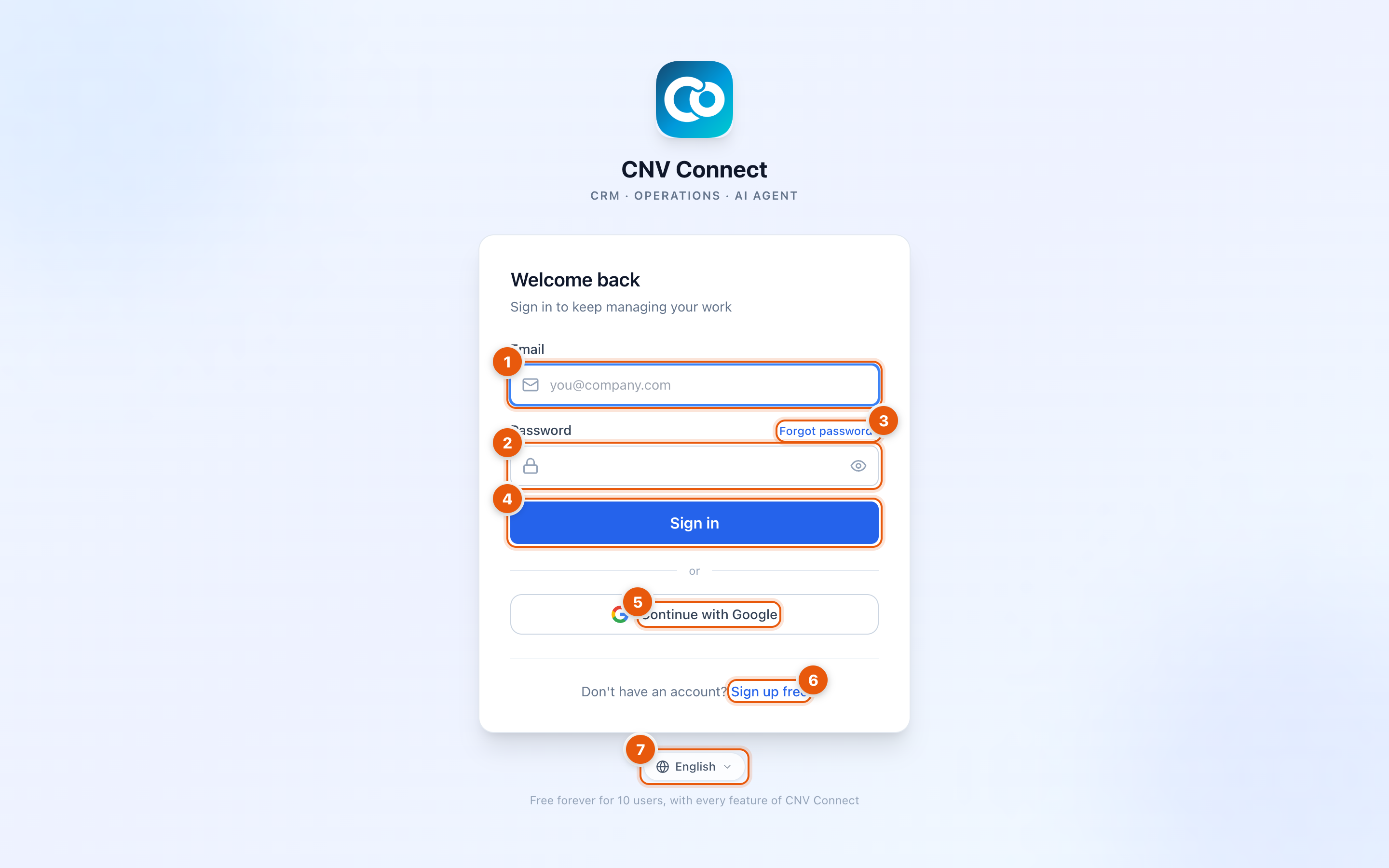
- E-mail — the work address your invitation was sent to. Sign-in is case-insensitive.
- Password — the eye icon on the right reveals what you typed, which is worth using before you blame the password.
- Forgot password? — opens the reset form described below.
- Sign in — submits the form.
- Continue with Google — signs you in with a Google account. The Google account must already belong to a user in the workspace; signing in with Google does not create an account by itself.
- Sign up free — creates a new workspace. Do not use this if you were invited to an existing one — see Create a workspace.
- Language — switches the language of the sign-in screen. Once you are inside, language follows your personal settings.
How to sign in
- Open hub.cnvconnect.com.
- Type your work e-mail and password, then select Sign in.
- If your account belongs to more than one workspace, the workspace picker appears next. Otherwise you land on the Overview dashboard.
Sign in with Google
Select Continue with Google and pick your account in the pop-up window. The first time, Google asks you to approve access — CNV Connect requests your basic profile and calendar events, so meeting invitations can be created from inside the workspace.
If you see "Google e-mail is not registered", your Google address is not a user in this workspace. Ask an administrator to invite that exact address first.
Reset a forgotten password
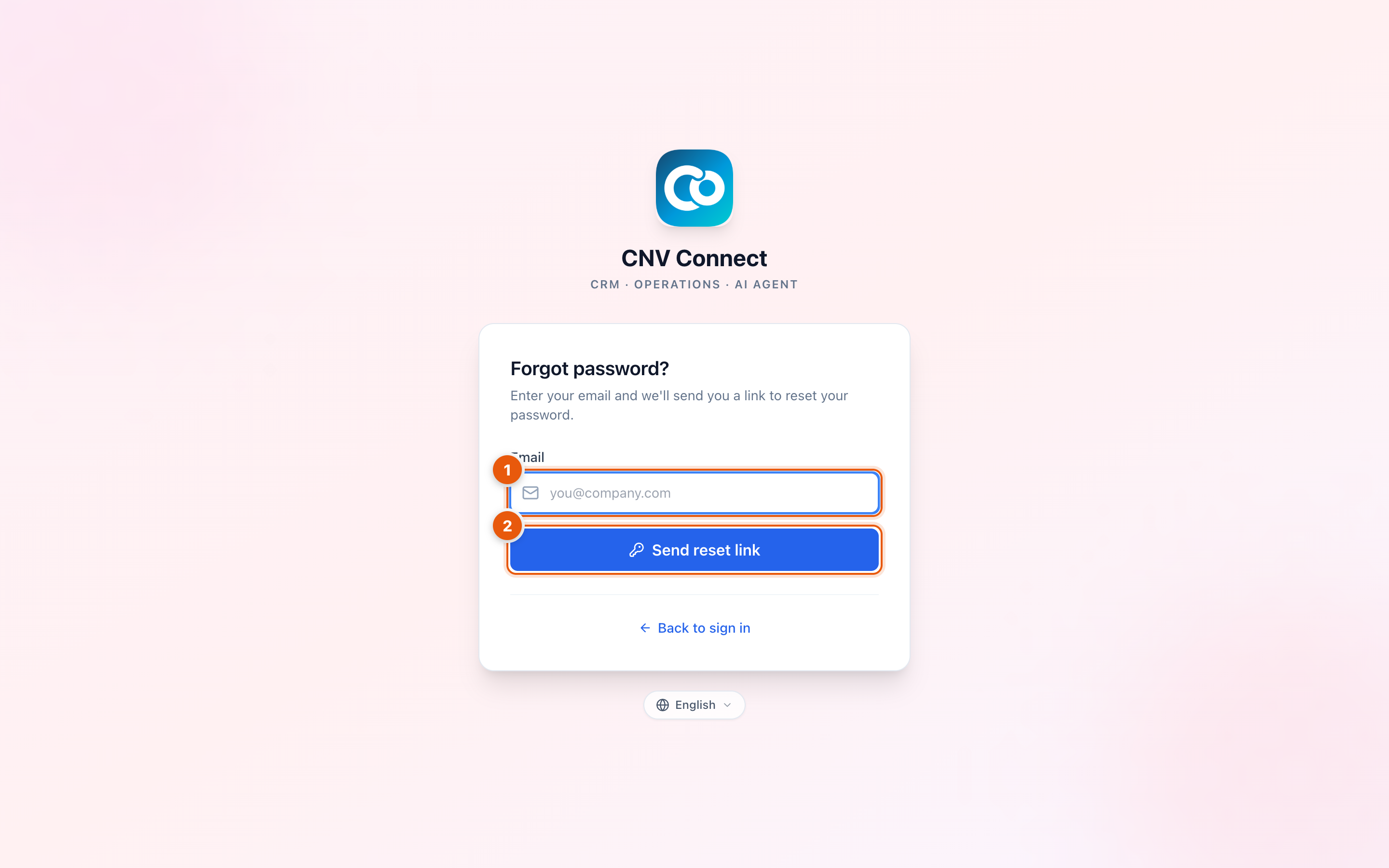
- E-mail — the address you sign in with.
- Send reset link — sends an e-mail containing a one-time link.
- Select Forgot password? on the sign-in screen.
- Enter your e-mail and select Send reset link.
- Open the e-mail and follow the link. It takes you to a form where you set a new password.
- Sign in with the new password.
Reset links expire and can only be used once
If you request a second link, the first one stops working. An expired, used or mistyped link shows this screen instead of the password form:
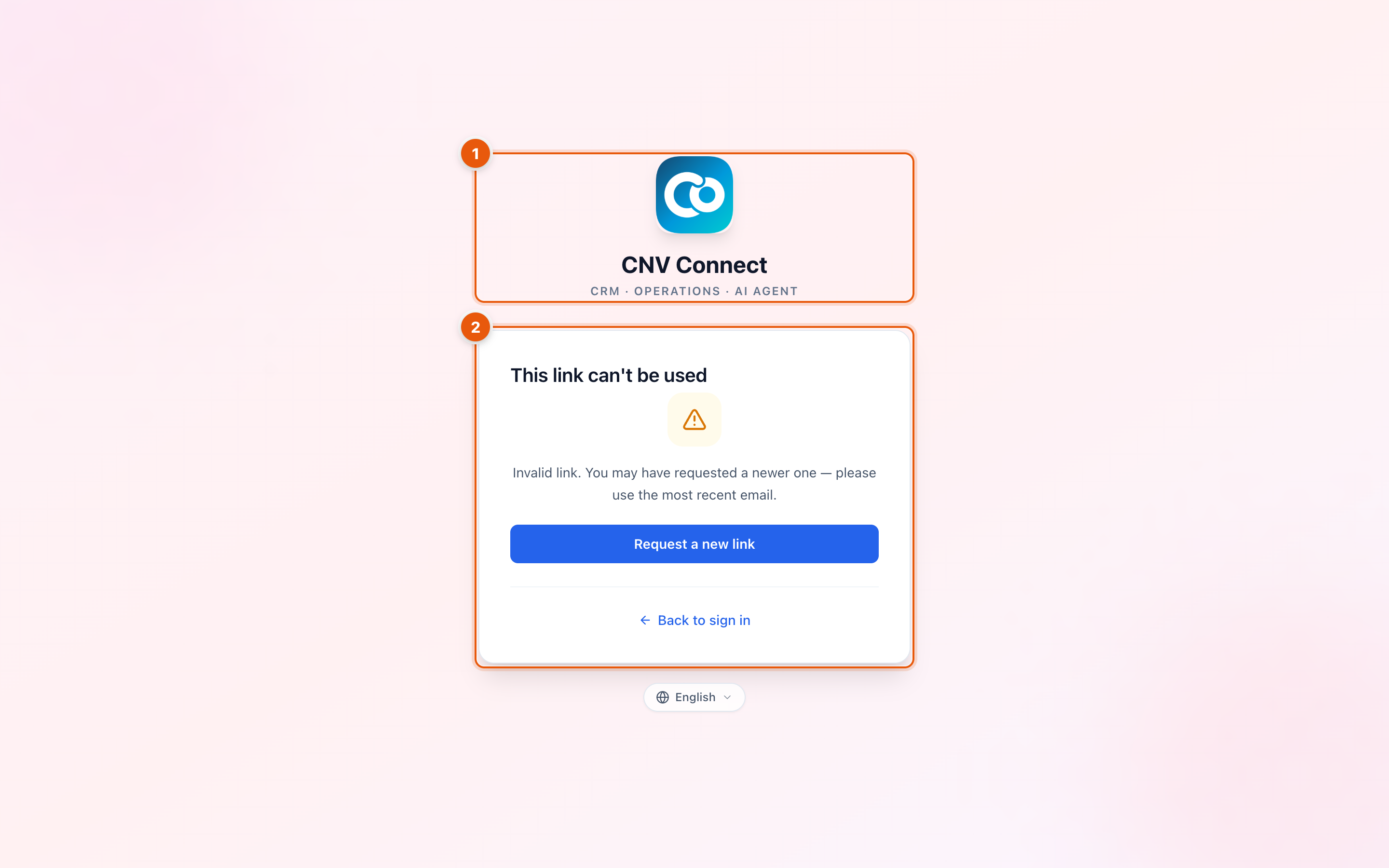
- Product name — you are on the CNV Connect reset page.
- The message — This link can't be used: the link expired, was already used, or a newer one was requested.
Request a fresh link from Forgot password? and use the newest e-mail in your inbox.
Accepting an invitation
When an administrator invites you, you receive an e-mail with a link of the form https://hub.cnvconnect.com/invite/<token>. Opening it shows the workspace you have been invited to and asks you to set a password. After that you sign in normally.
Invitations expire, and administrators can revoke them. If your link no longer works, ask for a new invitation from the Employee invitations page.
When sign-in fails
| What you see | What it means | What to do |
|---|---|---|
| Invalid e-mail or password | The pair does not match an account | Check for a stray space, then use Forgot password? |
| No workspace available | Your user exists but is not attached to an active workspace | Ask an administrator to check your membership |
| Account locked | Too many failed attempts, or an administrator disabled the account | Ask an administrator to unlock it |
| The page reloads and you are back at sign-in | The session cookie was rejected — usually a browser blocking cookies | Allow cookies for hub.cnvconnect.com, or try a normal (non-private) window |
Signing out
Select your avatar in the top-right corner and choose Sign out. Signing out affects the browser you are using; other devices stay signed in until their sessions expire.